Smaller Product Images Win: WebP/AVIF, Crops, Core Web Vitals
Stop Chasing “Better Photos.” Fix Size, Crop, and Format First.
Most ecommerce sites don’t need prettier photos—they need smaller, correctly cropped product images in WebP/AVIF. That’s what moves Core Web Vitals, improves mobile load time, and cuts the “I bounced before it finished loading” problem that kills conversions.
Here’s the mistake I see constantly in store audits: people compress first and call it done. If the image is oversized in pixels, you’re compressing a problem you should have cropped out.
Pixel dimensions (width × height) decide how much data the browser must download and decode. File size (KB/MB) is what survives after encoding. If you send a 3000px-wide product photo to a layout that renders at 900px, you’re paying for pixels the user never sees—and on mobile, the decode + resize work can still feel slow even when the file looks “small enough.”
Targets I actually use on ecommerce pages: export to the maximum rendered size (not your camera size), then WebP/AVIF at a sane quality setting. If you need crispness on high-DPR screens, do it deliberately with responsive images (serve 1× and 2× via srcset/sizes)—don’t just upload a giant “retina” file everywhere.
One more thing people skip: lock dimensions so layout doesn’t jump. Set width/height on <img> (or CSS aspect-ratio) for product grids and galleries, especially when images lazy-load.
- Pros: faster pages, better LCP, less mobile jank, cleaner CLS when dimensions are consistent.
- Cons: you need a repeatable export workflow; you can’t wing it per image.
Pixel Dimensions vs File Size: Why Oversized Images Don’t Compress Well

A quick customer moment: a founder sent me a “compressed” product gallery that still felt slow on iPhone. The files were smaller than before, yes—but each image was still 2400px wide, displayed at ~800px. Compression helped, but the browser still had to download and decode a lot of pixels, then scale them down. That’s wasted work.
Think of it like shipping: compression is packing tighter; resizing is choosing a smaller box. If you ship a fridge-sized box and vacuum-seal the air inside, it’s still a fridge-sized box.
| Factor | What it changes | What people get wrong |
|---|---|---|
| Pixel dimensions | How many pixels must be stored, transferred, and decoded | Uploading 2000–4000px images for 600–1000px layouts |
| File format | How efficiently those pixels are encoded (lossy/lossless) | Using PNG for photos because “it’s higher quality” |
| Quality setting | How much detail you keep vs discard in lossy formats | Exporting at 100% quality by default |
| Background + crop | How complex the image is to encode | Leaving tons of empty margins or untrimmed backgrounds |
If you want one rule that competitors rarely say out loud: crop/resize before you compress. Cut the background, remove empty margins, and resize to your real display width. Only then do you tune quality and format.
If you want a deeper walkthrough on the “format first” idea for ecommerce pages, this pairs well with Image Optimization for Ecommerce: Crop, Background, Format First.
WebP vs AVIF vs JPG/PNG: What to Use (and a Repeatable Export Checklist)
What should you export as in 2026: WebP or AVIF?
For most product photos: start with WebP because it’s widely supported and predictable. Move to AVIF when you’re chasing smaller files at similar visual quality—especially for big hero images and high-detail product shots—but watch for edge artifacts (“halos”) around cut-out subjects if your pipeline is sloppy.
JPG still works, and it’s a solid fallback. PNG is for transparency and sharp-edged graphics (logos, icons), not for full-color photos. A practical guideline from CAES OIT is that website images should never be larger than 500KB—and they specifically recommend JPG for photographs with PNG mainly when needed for logos. (Source)
Quality slider sweet spot: if you’re exporting JPG, you almost never need 100%. CAES OIT calls out that 60% to 80% is typically fine with no noticeable loss for web use. The same mindset applies to WebP/AVIF: don’t max the slider unless you have a measured reason.
- Step 1 — Decide the use case: hero, gallery, thumbnail. Don’t export one “master” for everything.
- Step 2 — Crop first: remove dead space and backgrounds that don’t sell the product.
- Step 3 — Resize to the real max render width: export near the largest size your theme displays (desktop), not your camera size.
- Step 4 — Export format: photos = WebP/AVIF/JPG; logos/icons = PNG or SVG (when applicable).
- Step 5 — Set quality below 100%: start around “visually lossless,” then check edges, gradients, and product text.
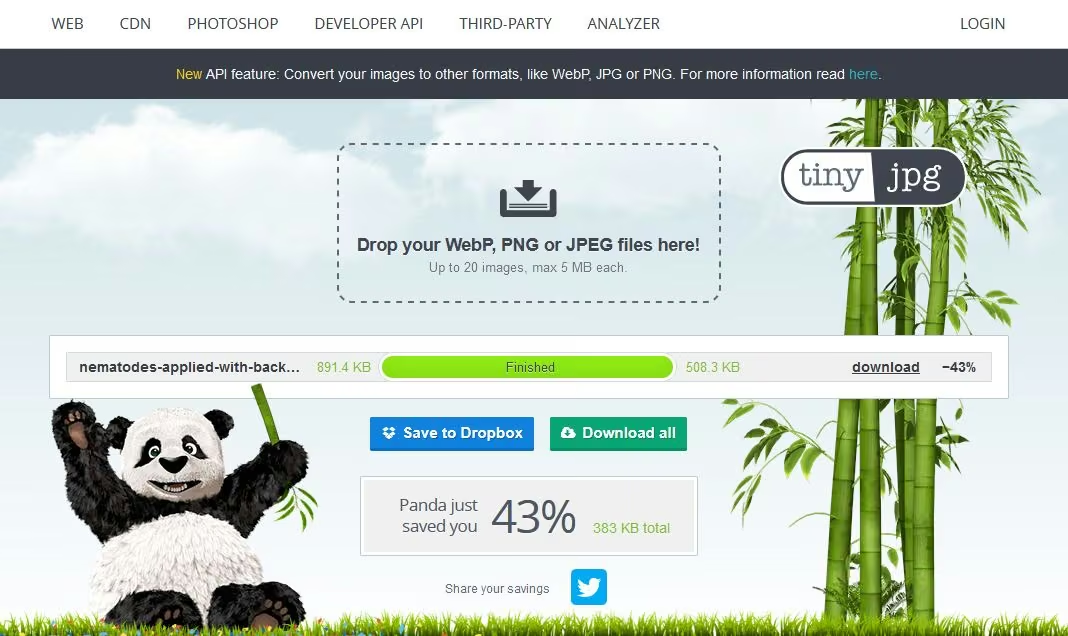
- Step 6 — Compress only after the above: compression tools help, but they’re not a fix for oversized pixels.
Export checklist by use case (practical targets):
- Hero (homepage / PDP top image): ~1600–2200px wide, WebP or AVIF, aim for ~150–350KB when possible.
- Gallery (PDP thumbnails + zoom strip): ~1000–1600px wide, WebP, aim for ~80–220KB each.
- Thumbnails (collection grids): ~400–800px wide, WebP, aim for ~15–70KB each.
If you control the markup: serve AVIF/WebP with a real fallback instead of betting on one format. A simple <picture> setup (AVIF → WebP → JPG) lets you keep compatibility without shipping the heaviest file to everyone.
If you’re already on WebP and want to move to AVIF without ugly edges, use this as a reference: Switching WebP to AVIF for product photos (without halos). For a focused “make files smaller without trashing quality” workflow, link this into your SOP: How to reduce image file sizes sem perder qualidade no e-commerce.
Validation: Prove the Win (Lighthouse + Real Devices), Not Just “Looks Fine”
Contrarian take: “looks sharp” is not the goal. “Loads fast on a mid-range phone on cellular” is the goal.
After you resize and export, validate the improvement the way Google and customers experience it:
Workflow I trust: run Lighthouse/PageSpeed for lab data, then open the page on a real phone (not your desktop) and scroll the gallery on mobile data. If you can feel the difference, your customers can too.
Common mistakes I see every week:
- PNG photos in product galleries (huge files for no gain).
- Exporting at 100% quality “just to be safe,” then wondering why LCP is bad.
- Untrimmed backgrounds and empty margins that bloat pixel count and sabotage compression gains.
- Uploading one giant image and letting CSS “resize it” in the browser.
Practical validation checklist:
- Pick one key page (homepage or top-selling PDP) and measure before/after in Lighthouse.
- Look specifically at LCP and total transferred bytes for images.
- Test on a real iPhone/Android over cellular and watch for gallery jank while swiping.
- Repeat on three pages, then turn it into a team rule (so the problem doesn’t come back next week).
If you want to tie this directly to conversion mechanics, not just “performance,” read this alongside: Signup form que converte: imagens leves (WebP/AVIF) + Core Web Vitals (ROI rápido).
Bottom line: you don’t win by uploading more photos. You win by shipping fewer pixels, in the right format, at the right quality, validated by real checks.
FAQ
How do you optimize image size for web without losing quality?
Crop and resize to the maximum size your site actually displays first, then export to WebP or AVIF with a quality setting below 100%. Check edges (especially around cut-outs), gradients, and fine product text on a real phone. If it still feels heavy, then run a compression pass—but only after resizing.
What is the best file size for images on a website?
There’s no single number for every image, but a practical benchmark is to keep most ecommerce images under a few hundred KB. CAES OIT recommends images should never be larger than 500KB. Your best target depends on use case: thumbnails should be tiny; heroes can be larger but must still load fast on mobile.
Is there a way to reduce the file size of an image quickly?
Yes: resize it down to the real displayed dimensions, then export in a modern format (WebP/AVIF) with a reasonable quality slider setting. If you only compress an oversized image, you’ll still pay the cost of downloading and decoding too many pixels. Quick wins come from trimming pixels first.
How can you validate image performance improvements?
Use Lighthouse/PageSpeed for consistent lab comparisons, then confirm on a real phone over cellular. Scroll product grids and swipe galleries; if interaction feels smoother and images appear faster, you’re fixing the user experience. Repeat the test on your top pages to ensure the improvement isn’t a one-off.