Free AI Background Remover 2026: Proof Checklist vs Remove.bg
A free AI background remover can beat Remove.bg and Photoshop in 2026—but only when it’s mechanically better, not just “good enough.” If you sell products solo, you’re not buying “AI.” You’re buying clean edges on hair/fur, real alpha transparency in PNGs, and batch throughput that doesn’t choke your catalog.
Here’s the part most reviews skip: the winner is the tool that survives a 200% zoom inspection, keeps consistent framing across SKUs, and doesn’t tax you with credits, retries, and manual cleanup. I’ll show you the proof checklist we use (the same one that catches the ugly failures that only show up after you upload to Shopify, Etsy, Amazon, or a marketplace feed).
This is a commercial guide. I’m not going to tell you “it depends.” I’m going to tell you what to test, what breaks, and which tools are worth your time in 2026—free included.
The 2026 proof checklist: edges, alpha, and throughput (200% zoom)
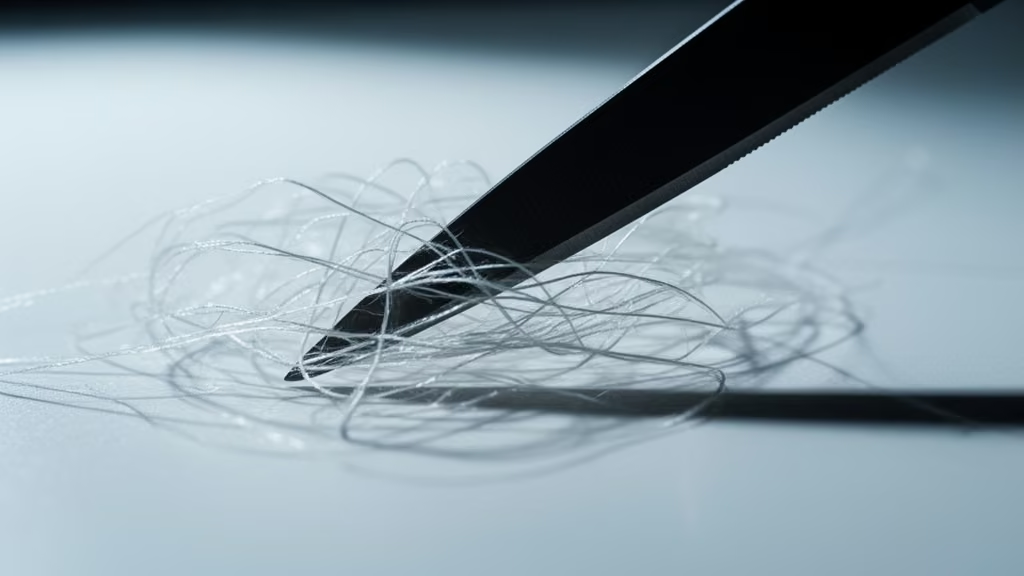
At 200% zoom, background removal stops being “AI magic” and turns into pixels: edge ramps, transparency gradients, and halos that only show up after you publish. The tools that beat Remove.bg and “quick Photoshop” aren’t the ones with the prettiest UI—they’re the ones that stay clean when you stress them.
Here’s the exact mini-batch we use to screen a tool in ~6 minutes. Pick 3 images: (1) hair or fur, (2) a glossy product, (3) a semi-transparent object like a bottle or glass jar. If a tool can’t pass this, it won’t survive a real catalog.
- Hair/fur edge fidelity: zoom to 200% and trace the silhouette. Fail signals: stair-step edges, crunchy halos, missing wisps, or a “cookie-cutter” contour.
- True PNG alpha (no fake cutout): export PNG, then drop it over three solid fills: white (#fff), black (#000), and mid-gray (#777). If you see a tinted outline on any of them, the alpha edge isn’t clean.
- Shadow behavior: does it erase the natural contact shadow (floating product) or keep background shadow junk (dirty cutout)? The best behavior is controlled: keep a clean contact shadow or remove it cleanly—no muddy smear.
- Glass & semi-transparency: labels, liquids, and reflective rims are where removers lie. Look for “solidified” glass, opacity jumps, or holes punched through highlights.
- Batch throughput: time end-to-end for 50 images (upload → process → download). This number decides whether you can keep listing sets consistent every week.
- Consistency across a SKU set: run 10 angles of the same product. Weak tools drift on crop tightness, edge softness, and boundaries shot-to-shot—your catalog looks messy even when each image is “fine.”
- Retry tax: track attempts per usable image. One extra retry per 10 images kills the economics of “free” fast.
One 2026-specific test that’s worth doing once: prompt control. “Background remover with prompt” features are everywhere, but most tools still don’t obey prompts reliably. If it can’t consistently preserve thin details (straps, lashes) or keep a repeatable shadow style, treat prompts as a bonus—not the deciding factor.
After removal, the job isn’t done. Your cutout is only as good as the file you ship. If your store images get haloed after format conversion, you lose trust and clicks. Keep it format-first (crop → background → format) and validate edges before you optimize—see Image Optimization for Ecommerce: Crop, Background, Format First.
Quick comparison: 9 best background removers in 2026 (and who they fit)
A fast list is only useful if it’s honest about tradeoffs. Using the checklist above (especially 200% zoom edges + 50-image throughput), here’s how these tools usually fit real solo workflows in 2026.
| Tool | Best for | What to watch |
|---|---|---|
| Claid | Catalog consistency when you need a uniform “store look” | Confirm your plan matches your volume; watch workflow costs if you scale SKUs |
| Remove.bg | Quick one-offs when speed matters more than perfect edges | Credits + retries add up; hair and semi-transparency can swing image-to-image |
| Photoroom | Template-driven listings plus batch removal | Template-first workflows can lock you into a style; verify output resolution and export rules |
| Canva | Non-designers who already build assets inside Canva | Removal quality varies; careless export/compression can introduce halos on soft edges |
| Adobe Photoshop / Adobe Express | Edge surgery, composites, and “we must ship perfect” cleanup | Time cost is real; one-click results still often need refine for hair, glass, and shadows |
| Pixelcut | Fast, mobile-friendly edits for small creators | Check hair edges and cross-angle consistency; batch limits can matter |
| Clipdrop | Designers who want a flexible AI utility belt | Great for experiments; for catalogs, verify repeatability across angles |
| NoBG.space | Privacy-minded runs (depending on your workflow needs) | Verify true alpha output and whether subtle edges stay clean on black/gray backgrounds |
| WaveSpeed background remover | Throughput-first batches when you’re racing volume | Speed can hide edge defects; do the 200% zoom + #fff/#000/#777 test before you commit |
If you want one decision rule: solo sellers should prefer the tool that stays consistent for 50 images in a row. One “perfect” hero shot doesn’t matter if the other 49 images drift on edges and shadows.
One external reference I agree with on the practical tradeoff: for many day-to-day ecommerce tasks, a dedicated background remover beats Photoshop on speed, while Photoshop wins when you need pixel-level control and complex corrections. See portfolyio.com’s background remover vs Photoshop breakdown for that framing.
How to remove BG in Photoshop 2026 (fast path + when it still hurts)
I’ll be blunt: Photoshop in 2026 is rarely the fastest way to remove backgrounds for a full catalog. But it’s still the best “last mile” tool when AI removers fail on hair, glass, and problem shadows—and when you need to deliver a cutout that survives picky clients.
Does Photoshop have an AI background remover? Yes. Photoshop’s background removal is AI-assisted and is built for quick subject selection. The problem isn’t whether it exists—the problem is the cleanup time when the cutout is almost right.
Here’s the fast path that keeps you out of the weeds:
- Start with Remove Background / Select Subject: get the first pass quickly.
- Open Select and Mask: this is where you fix hair/fur edges and refine the transition. Use it even if the first result looks fine at 100%.
- Inspect on solid backgrounds: drop a white layer and a black layer behind the subject. If you see a fringe on either, your alpha edge isn’t clean.
- Handle shadows intentionally: for product photos, decide: keep a clean contact shadow (controlled) or remove shadows entirely. Mixed shadow behavior makes a catalog look amateur fast.
- Export to PNG with transparency: keep it lossless for the cutout stage. Convert formats after you’ve validated edges.
When Photoshop hurts:
- Hair/fur on busy backgrounds: you can get it right, but you pay in time—especially if you’re doing 20+ images for a creator shoot or pet products.
- Glass + semi-transparent items: Photoshop can be perfect, but perfection is manual. The “AI” part gets you 70–90% there, then you do the rest.
- Batch catalog work: actions help, but you still end up supervising edge quality. That supervision is a hidden cost.
If your end goal is an ecommerce-ready image, Photoshop is just one stage. The biggest performance wins usually come right after export: crop discipline, compression, and format choice. If you’re seeing halos after conversion, especially around soft edges, fix your pipeline—start here: Switching WebP to AVIF for product photos (without halos).
Failure cases most reviews ignore: shadows, glass, and “almost-transparent”
A customer moment I keep seeing: the seller removes the background, the cutout looks fine, then they upload it—and suddenly there’s a gray fringe, the product looks like it’s floating, or the glass turns into plastic. That’s not you. That’s the failure mode.
These are the three categories that decide whether a “free AI background remover” actually beats Remove.bg and Photoshop in 2026:
1) Shadows
AI removers often treat shadows as background noise. For apparel flat-lays and product tabletop shots, shadows can be part of the product reality. If the tool deletes the contact shadow completely, your product can look pasted. If it keeps the entire background shadow blob, it looks dirty.
What to test: run the same product on a white sweep and a gray sweep. If the remover keeps a consistent, soft contact shadow (or removes it cleanly), it passes. If the shadow shape changes randomly across angles, it fails catalog consistency.
2) Glass and semi-transparent items
Perfume bottles, drinkware, acrylic stands, plastic packaging: these are where a remover’s “alpha understanding” shows. Weak models either fill in transparency (turning glass into opaque) or punch holes where highlights exist.
What to test: place the cutout over a black background. Look for missing highlight bands, jagged edges on reflective rims, and weird opacity jumps.
3) “Almost-transparent” edges (hair, lace, fur, motion blur)
This is where the 200% zoom test pays off. Most tools can detect a subject. Fewer can preserve the soft transition without creating a halo.
What to test: choose one image with backlit hair or fur. If the output shows a bright outline (common on white backgrounds), the tool is faking edge softness.
Pro tip: don’t trust a single background. A cutout can look perfect on white and awful on black. If a tool can’t pass both, it’s not “pro,” even if the UI says it is.
Hidden costs: credits, retries, and team workflow (the math no one does)
Here’s the contrarian take: the most expensive background remover is often the one that’s “almost right.” Not because the subscription is high, but because your workflow bleeds time through retries, manual fixes, and re-exporting in the wrong formats.
If you’re choosing between a free AI background remover, Remove.bg, and Photoshop in 2026, run this simple cost audit:
- Credits per usable image: if 10% of images require a retry, your real cost per usable cutout is higher than the sticker price. Track “attempts,” not “uploads.”
- Edge-fix minutes: time yourself on 10 hard images (hair, glass, shadows). If you spend 2 minutes fixing each in Photoshop, that’s 20 minutes per batch. Multiply by weekly volume.
- Batch throughput: measure images/hour end-to-end. A tool that’s 10 seconds faster per image sounds small—until you do 300 images for a catalog refresh.
- Consistency cost: inconsistent crops and edges force you to re-shoot or re-edit. That’s not “design preference.” That’s production cost.
- Collaboration tax: if you ever hand work to a VA or a designer, check whether the tool supports predictable settings (modes, presets) and bulk export naming. “Free” can become messy fast if the workflow isn’t stable.
What changed by 2026 is that many tools now advertise “pro” modes, batch processing, and even prompt-based controls. The gap is that few tools expose repeatable, verifiable quality control. That’s why the 200% zoom checklist matters: it’s your QA layer, regardless of what the pricing page claims.
If your end goal is store performance (not just “a transparent PNG”), your post-removal pipeline matters as much as the cutout. Crop size, compression level, and format choice affect Core Web Vitals and visual quality. If you want the full sequence we recommend for ecommerce teams—even solo ones—use this as your playbook: Image Optimization for Ecommerce: Crop, Background, Format First.
So which AI tool is best—and what’s the best background remover for free?
Which AI tool is best for removing backgrounds from photos? For solo ecommerce sellers, the “best” tool is the one that produces consistent edges and alpha transparency across a batch—not the one that wins a single demo image. In practice, Claid often fits the “catalog consistency” slot, Remove.bg stays a reliable quick option for one-offs, and Photoshop remains the cleanup king when AI fails.
What is the best background remover for free? The best free option is the one that gives you full-resolution, watermark-free PNGs (real alpha), and doesn’t force retries on common failure cases. If a free tool downgrades resolution, adds a watermark, or limits batch runs so hard that you export manually, it’s not free—you’re paying with time.
Use this decision shortcut:
- Choose a free AI background remover if it passes the 200% zoom test on hair/fur, exports clean PNG alpha, and can process at least 50 images per session with stable results.
- Choose Remove.bg if you want predictable speed for single images and you’re okay budgeting for credits when quality varies.
- Choose Photoshop if you routinely shoot hard subjects (glass, fine hair, motion blur) and you can justify the manual time—or you need exact control for client deliverables.
Last step before you ship: check your output on the backgrounds your store actually uses (white product grids, lifestyle pages, dark-mode sections). A cutout that looks clean in isolation can break on real pages—especially after format conversion. If you’re moving to AVIF for performance, do it without edge halos: Switching WebP to AVIF for product photos (without halos).
If you only remember one thing: in 2026, “free” beats paid only when quality is verifiable. Run the checklist, log retries, and pick the tool that stays clean at 200% zoom.
FAQ
How do I check if a cutout is actually clean (not just “looks fine”)?
Zoom to 200% and inspect the edge where hair/fur or soft materials meet the background. Then drop the PNG over pure white, pure black, and mid-gray backgrounds. If you see fringes, tinted outlines, or jagged steps on any of them, the cutout isn’t clean yet.
Does Photoshop have an AI background remover in 2026?
Yes—Photoshop uses AI-assisted background removal and subject selection for fast first-pass cutouts. The catch is that tricky subjects (hair, glass, shadows) still usually need manual refinement to look professional at 200% zoom.
What’s the fastest workflow for ecommerce product photos after background removal?
Validate the cutout (200% zoom + black/white backgrounds), then standardize crop framing across SKUs, then compress and convert formats for performance. If you convert too early or skip validation, you’ll ship halos and inconsistent edges that show up on store pages.
Why do semi-transparent products break so many AI background removers?
Because the tool has to preserve partial opacity and reflections, not just “keep” or “delete” pixels. Glass, plastic, and motion blur often contain background color bleeding through, and weak removers either fill those areas (making them opaque) or punch holes where highlights exist.